DN
Daily Notes
A calm scratchpad with persistent local notes.
FocusKeep the websites, AI providers, tiny HTML apps, folders, terminals, and tools you actually use in one compact workspace—without turning your day into a maze of browser windows.
Windows 10/11 · WebView2 · Local-first app data · No account required for the trial
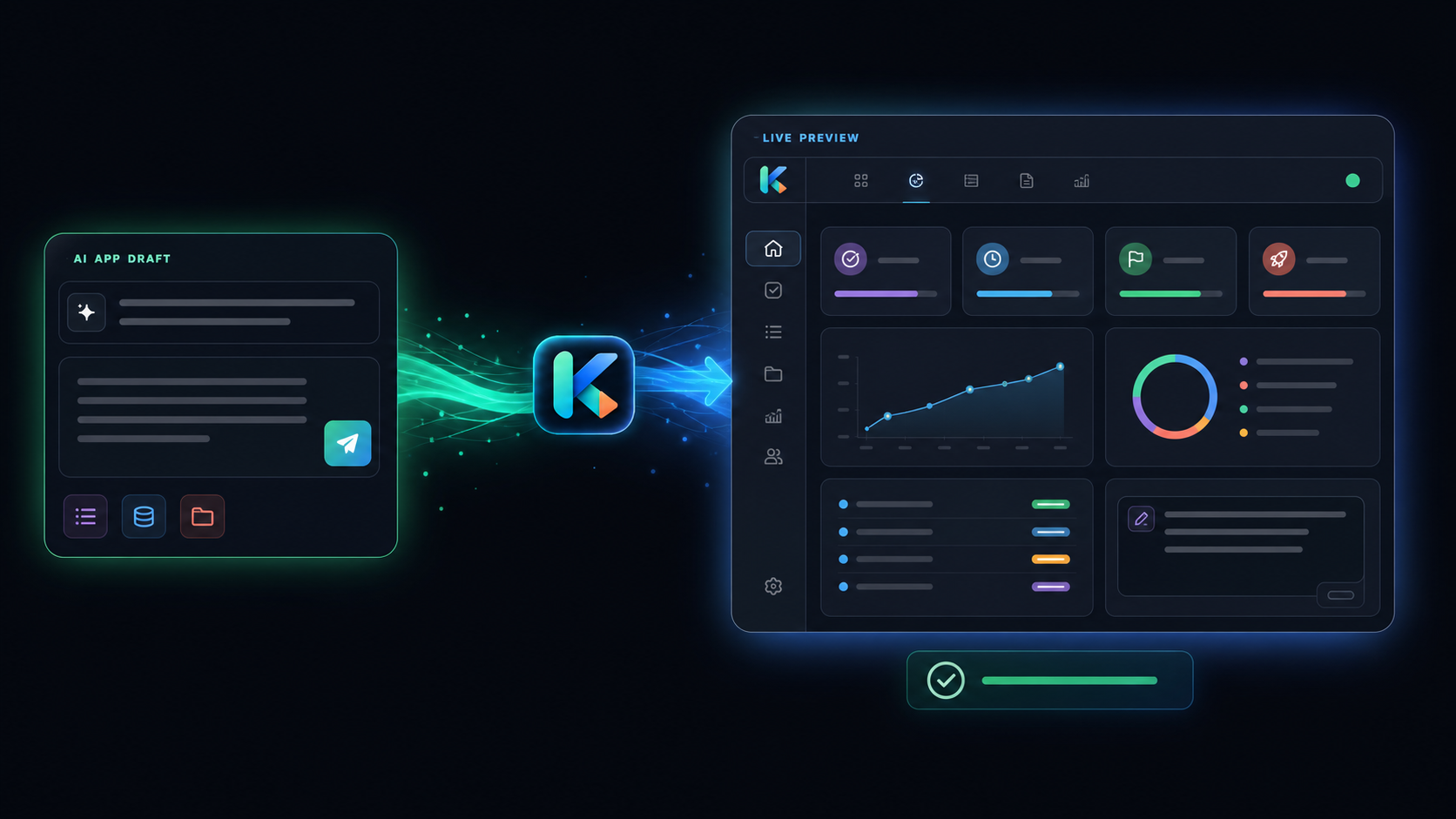
Explore real KopraCode screens, follow the highlighted controls into AI Studio, and see the resulting app return to the library.
Hover a highlighted area to see what it does. Select any screen to explore the workflow.
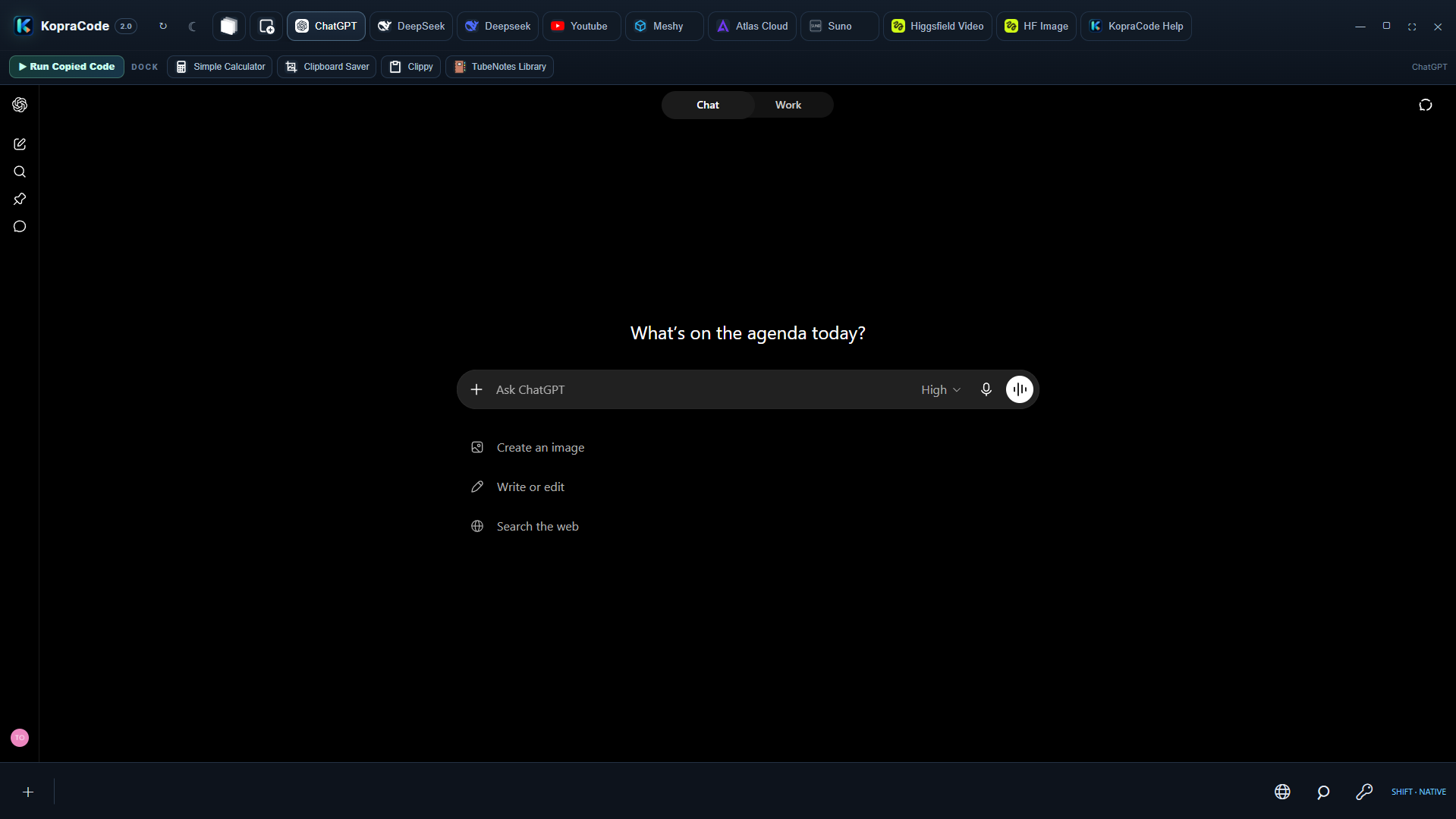
The interface above uses unaltered KopraCode captures. Hotspots and the short progress state are the only simulated layers; no AI provider is contacted and no data is saved.
 KopraCodeDEMO
Find, run, and improve your focused tools.
A calm scratchpad with persistent local notes.
FocusCompact focus sessions and gentle reminders.
FocusCollect articles and mark progress without clutter.
ResearchA compact project dashboard with milestones and notes.
FocusPermanent sites keep their place, identity, and optional per-tab behavior.
Icon-only tabs remain compact.
 App Manager
127.0.0.1/apps/built in Tab Manager
127.0.0.1/tabs/built inchat.example.com▶ codeyoutube.comfaviconLearn the workspace one focused surface at a time.
Keep daily sites above; use the temporary browser for everything else.
Create complete single-file apps with local or cloud providers.
Reach files, terminals, pins, search, and small apps from the dock.
Combining your request with the single-file app rules.
A compact project dashboard with milestones and notes.
Your focused project dashboard.
Prototype review72%
Release preparationNext
DocumentationQueued
This is a deterministic product simulator. It demonstrates the interface and workflow but does not contact an AI provider or save data.
KopraCode combines web surfaces and native Windows utilities without pretending they are all the same thing. Each tool opens in the form that makes it most useful.
Keep your daily services in a fixed top bar with automatic favicons, per-tab settings, Night Light, and optional Run Copied Code support.
Tabs and Tab Manager →Open temporary sites with your KopraCode login profile. Add a useful page as a permanent tab only when it earns a place.
Browser and Focus Video →Create polished single-file HTML tools with local, DeepSeek, OpenAI-compatible, or Ollama providers. Drafts continue when the modal is closed.
AI providers and drafts →Preview pasted code, save immutable versions, organize apps into workspaces, add tags, archive old tools, and run them in focused windows.
App Manager →Browse folders, preview images, open a terminal, and use Everything with es.exe for near-instant filename search across indexed drives.
Set up Everything →Pin apps, files, folders, terminals, and global shortcuts. Use modifier banks for dense layouts and see running state at a glance.
Taskbar guide →Dim, warm, and desaturate bright web pages while leaving interactions intact. Use one global profile or tune individual tabs.
Night Light →Copy a complete HTML document from an AI chat, preview it safely, then create a new app or update an existing one.
Run Copied Code →Customize built-in managers, website tabs, saved apps, and native taskbar pins with quick offline symbols, Iconify search, local artwork, favicon sync, and color inversion.
Icons and appearance →These KopraCode 2.0 views follow the workflow from a small app library to AI creation, permanent web tabs, and complete icon customization.
Save complete single-file HTML tools, group them into workspaces, tag and favorite them, keep version history, and dock the ones you use every day.
Explore App Manager →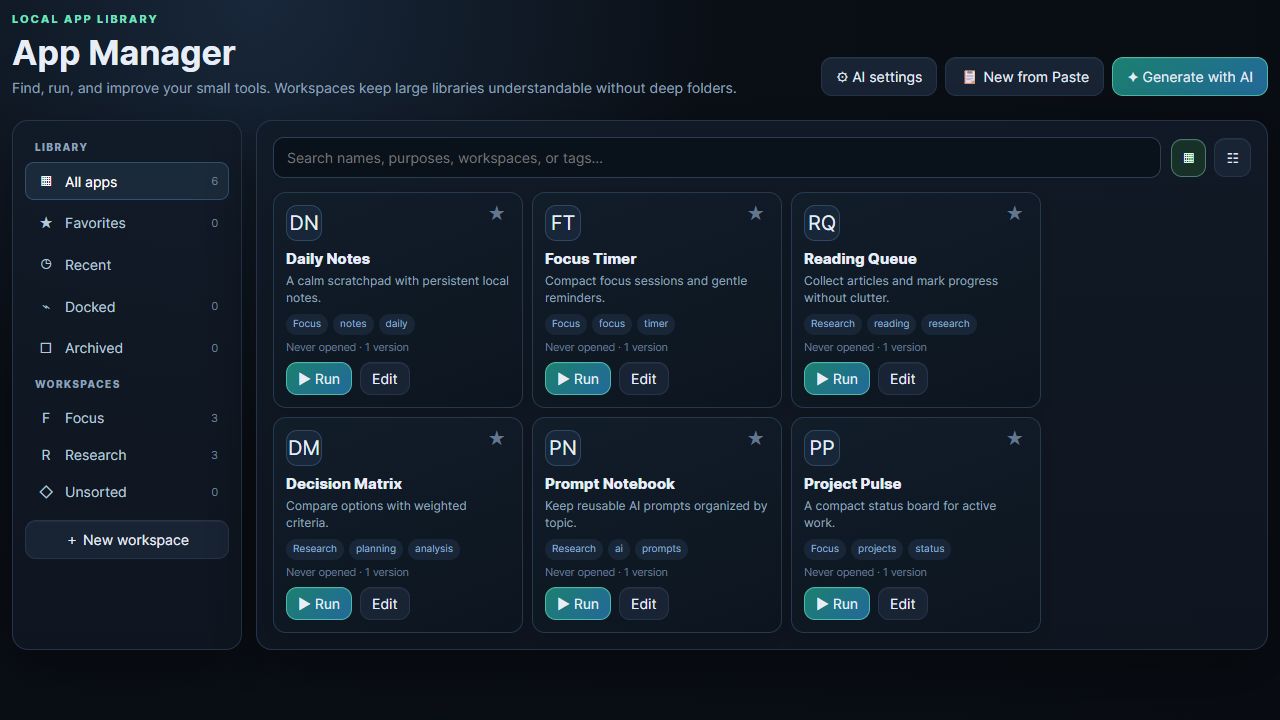
AI Studio starts every creation as a recoverable draft. You can close the modal, work elsewhere, return later, and save the completed result only when it is ready.
Learn the AI Studio workflow →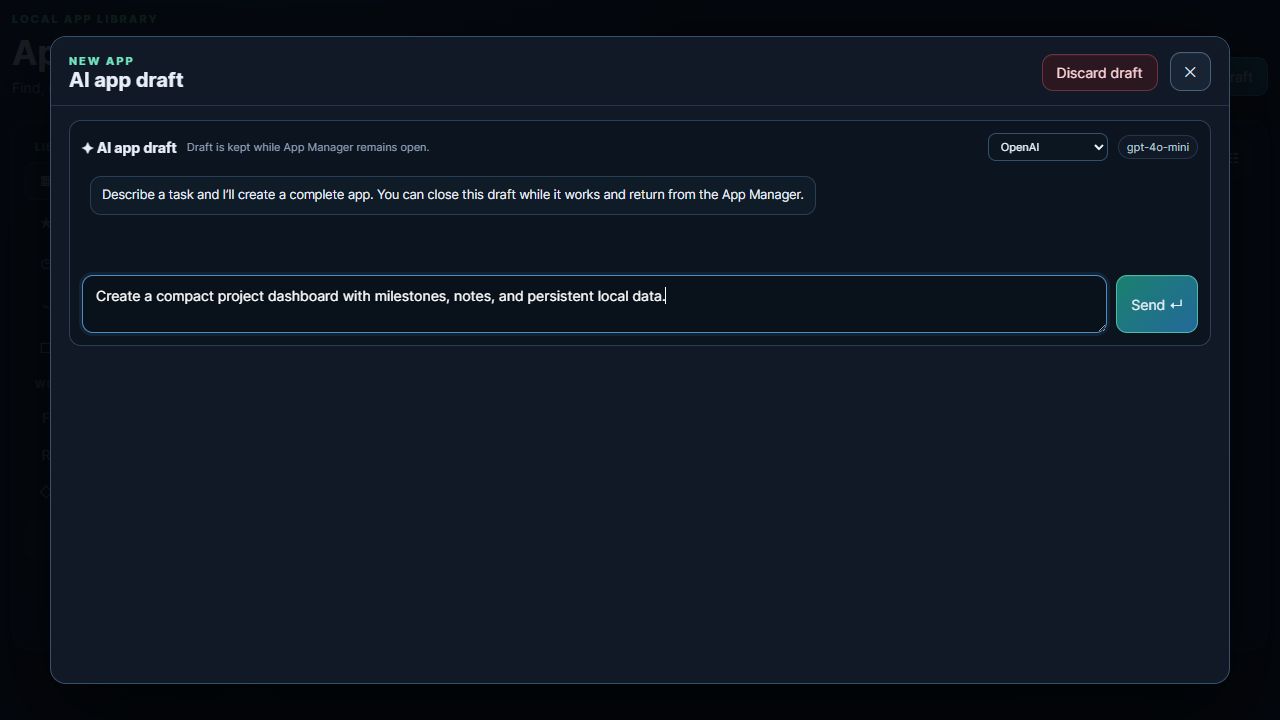
Create profiles for local models, DeepSeek, OpenAI, or another compatible endpoint, then switch from the least expensive or most private option to a stronger provider only when needed.
Configure providers and models →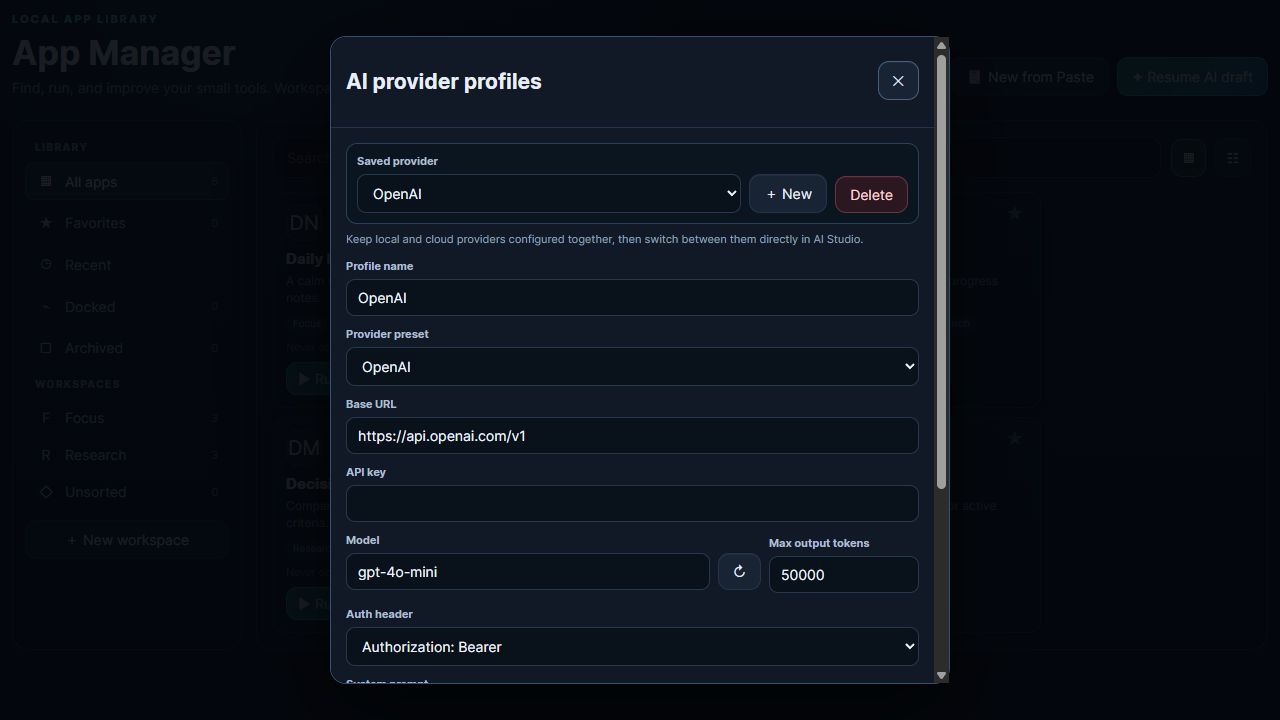
Adjust the shared named-tab width, switch individual tabs to icon-only mode, install common AI assistants, restore Help, and tune Night Light without editing configuration files.
Set up the Tab Manager →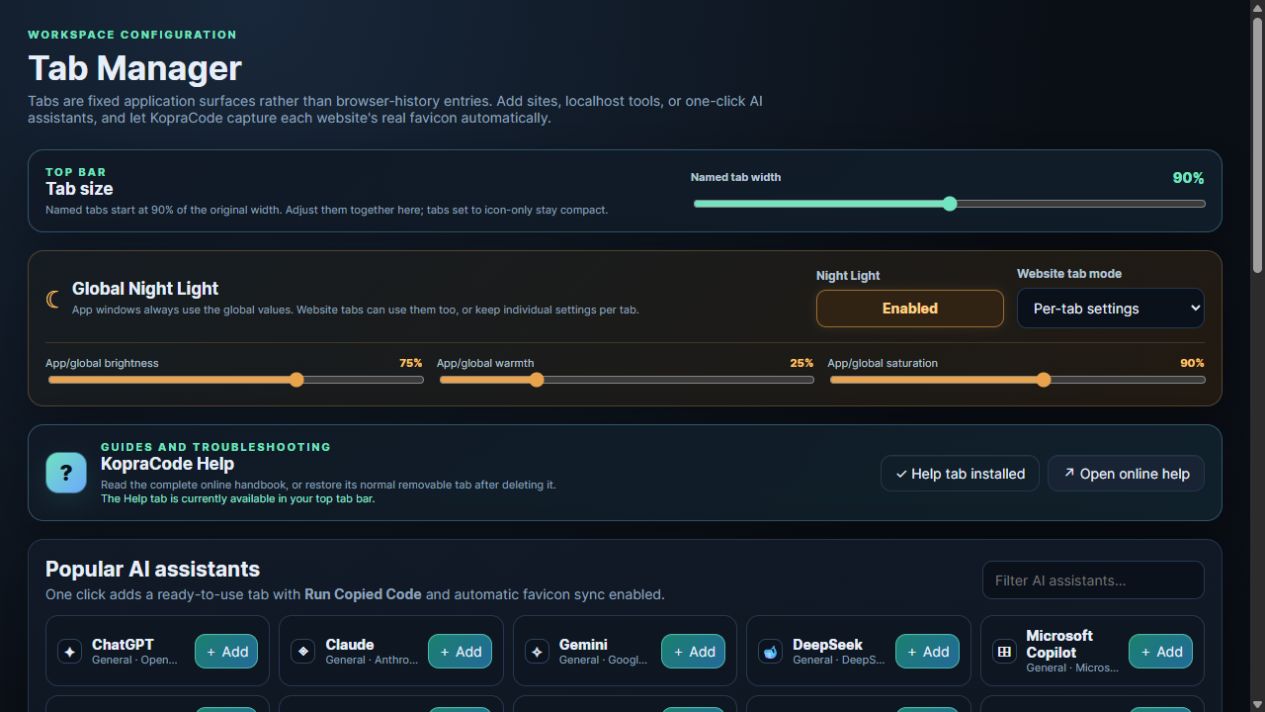
Reorder sites, distinguish favicon-synced and fixed artwork, enable copied-code handling only where useful, and customize the two protected management tabs without risking their URLs.
Manage sites and built-in tabs →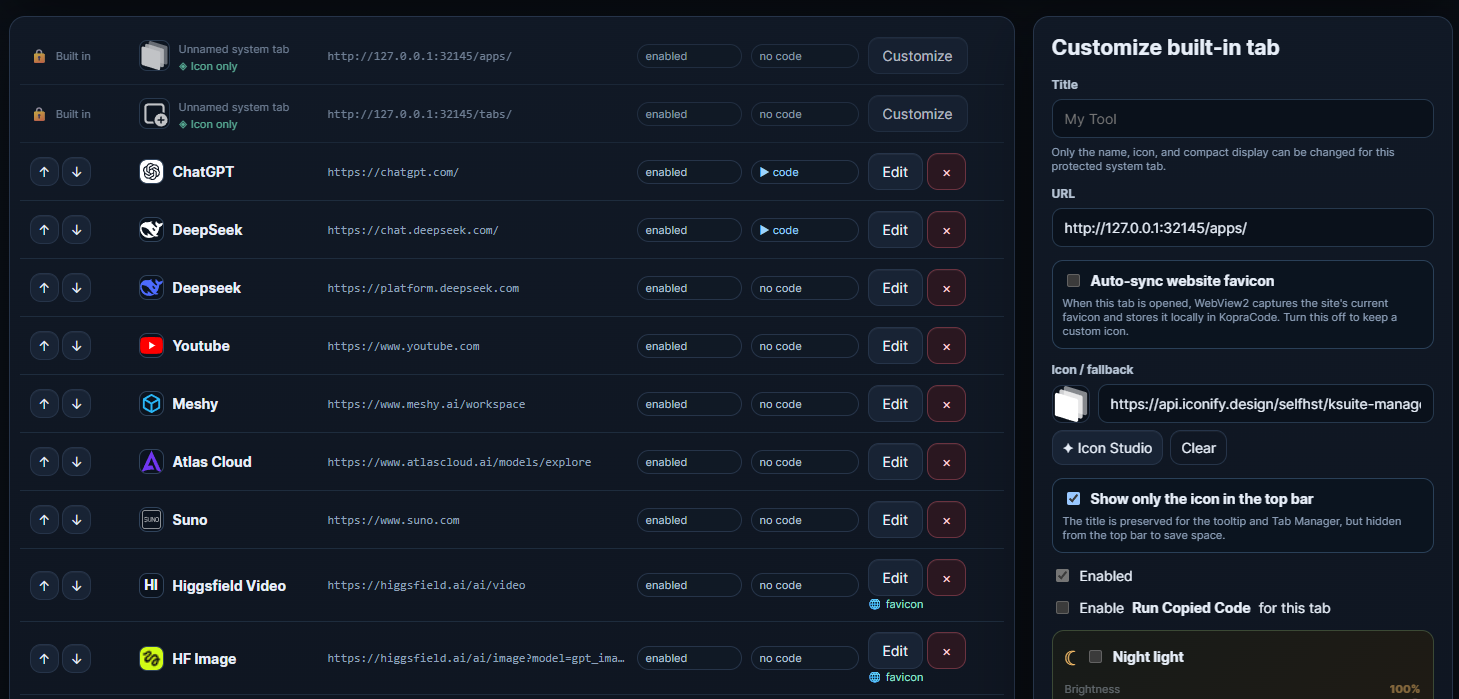
Choose an instant offline symbol or search thousands of Iconify SVGs. Apply the result to built-in managers, website tabs, saved apps, or native pins, and invert artwork when its original colors disappear against a dark surface.
Customize icons everywhere →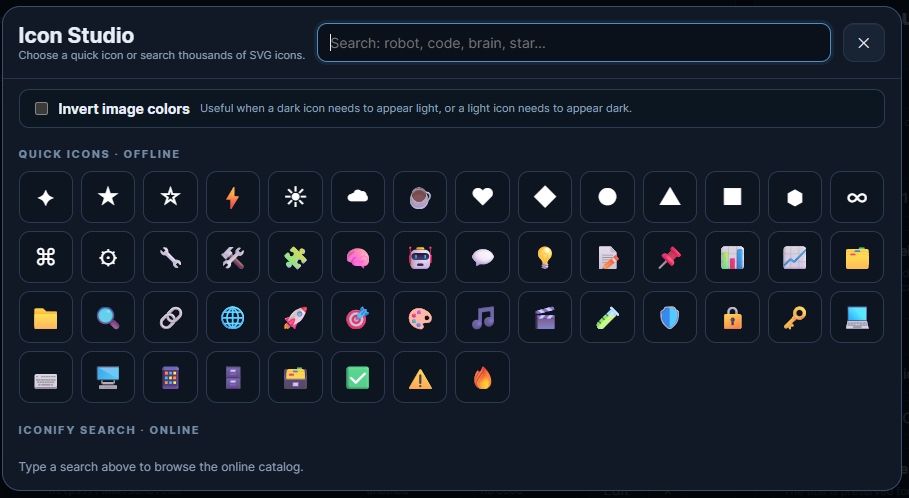
You do not need a project scaffold, a package manager, or another repository for every small utility.
Use the built-in App Studio, or copy a complete HTML document from an AI provider already open in a tab.
Open the code in KopraCode’s isolated renderer. Update the prompt, edit the source, or continue a saved background draft.
Create an immutable version, place the app in a workspace, then dock it for one-click access from the native taskbar.
Saved HTML apps run inside KopraCode’s WebView2 windows. Their persistent data is isolated per app, while management capabilities remain unavailable to ordinary app content.
// one HTML file, persistent local data
const notes = await window.edgedeck.data.get("notes") || [];

notes.push({
  text: "A useful idea",
  createdAt: new Date().toISOString()
});

await window.edgedeck.data.set("notes", notes);
The seven-day trial is designed to let you test the real workflow before deciding.
The online help covers every major surface, recommended Everything + es.exe setup, AI provider order, licensing, data locations, and troubleshooting.
Open KopraCode Help